

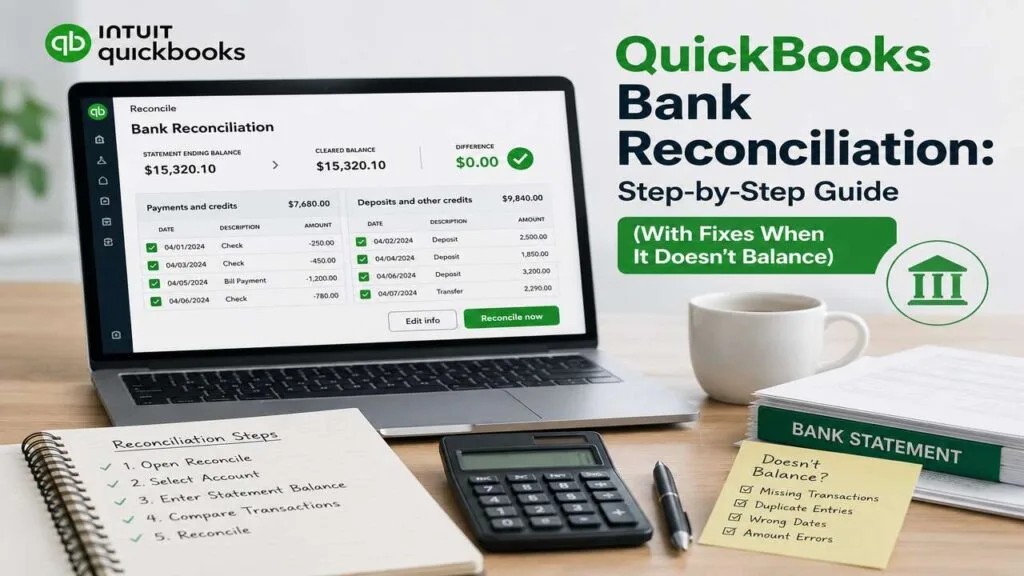
QuickBooks says the checking account holds $42,180.17. The bank app says $39,865.42. Same business, same month, same account, two different answers.
One of those numbers is wrong. Until you find out which one, every report built on that balance carries the error forward — the profit and loss statement, the balance sheet, the number your tax preparer works from in March.
Reconciliation settles it. Done monthly, the whole exercise takes fifteen or twenty minutes. Left alone for a year, it turns into a cleanup project. What follows is the current QuickBooks Online workflow start to finish, plus the specific fixes for the three places a reconciliation actually stalls: a beginning balance that was already off before you started, an ending balance that refuses to reach zero, and a leftover difference small enough to tempt you into forcing it.
What Reconciliation Actually Proves
Solid day-to-day bookkeeping gets transactions into the system, and reconciliation confirms that what went in matches what actually happened at the bank. Those are two different jobs.
Categorizing answers where does this belong? Reconciling answers is anything missing, duplicated, or invented? Books can look perfectly categorized and still be wrong, because a payment nobody entered is a payment nobody can miscategorized.
So the test is simple. Take one account and one statement period. If the ending balance in QuickBooks equals the ending balance on the statement for the same date, the underlying transaction list is almost certainly complete. That match is what makes every downstream report trustworthy.
What to Have in Front of You Before You Start
Reconciliation goes faster when the books are already clean going in, so spend two minutes on prep rather than fighting the software later.
You need three things:
- The actual bank or credit card statement for the period — not the running balance from the banking app. Statements carry a fixed closing date and a fixed closing balance. App balances move while you work.
- Every transaction for that period entered and categorized. If the account connects to a bank feed, clear out the For Review queue first. Anything still sitting there stays outside the reconciliation.
- The prior period’s ending balance, which becomes this period’s beginning balance. QuickBooks fills this in automatically, and checking it against last month’s statement takes five seconds.
One more habit worth adopting: reconcile one month at a time, in order. Attempting eight months at once turns a short task into an afternoon.
How to Reconcile a Bank Account in QuickBooks Online
The path through the interface shifted with Intuit’s recent redesign, so anyone following an older tutorial or an older QuickBooks Online setup will hunt for menus that moved.
Step 1 — Open the reconcile screen
Go to All apps, then Accounting, then Reconcile. First-time users select Get started. The older Gear icon and left-hand Accounting menu routes still work in some accounts during the rollout, and they land in the same place.
Step 2 — Pick the account
Use the account dropdown and choose the exact account on your statement. Businesses with two accounts at the same bank, or a checking and a savings account with similar names, lose more time here than anywhere else in the process.
Step 3 — Check the beginning balance
QuickBooks displays the last statement ending date, and your current statement should begin the day after it. If the beginning balance does not match, stop and jump to the beginning-balance fix below. Reconciling on top of a broken starting point only buries the problem deeper.
Step 4 — Enter the ending balance and ending date
Both come straight off the statement. Some banks label the ending balance as the closing balance or the new balance.
Step 5 — Start reconciling and match line by line
QuickBooks shows its transaction list beside your statement. Tick the checkbox next to each transaction that appears on both. The cleared balance updates as you go, and the difference at the top moves toward zero.
Step 6 — Watch the difference, not the checkboxes
That number at the top of the screen is the one to track. When it reads $0.00, the period balances.
Step 7 — Finish
Select Finish now. QuickBooks saves a reconciliation report automatically, and you can pull it up later from History by account on the same screen.
The AI-Assisted Path on Plus, Advanced, and Enterprise Suite
Businesses on higher-tier plans — including most eCommerce sellers running high transaction volume — now have a faster route through the same workflow.
QuickBooks Online Plus, Advanced, and Intuit Enterprise Suite include AI Powered Reconciliation. Rather than keying in the ending balance and date by hand, you upload the statement itself or use Statement Auto Import. The system reads the statement, fills in the ending balance and ending date, then compares its contents against what already sits in QuickBooks.
Results land on an Insights tab, sorted into three buckets:
| What QuickBooks shows | What it means |
|---|---|
| Paired transaction | Matched successfully against the statement |
| Transactions in bank feed needs review | Still sitting in For Review and not yet reconcilable |
| Extra transactions in QuickBooks | Recorded in QuickBooks, absent from the statement |
That third bucket is the useful one. QuickBooks also suggests why those extras exist — timing differences, duplicate entries, manual entries, or uncleared transfers and deposits. Simple Start and Essentials subscribers reconcile manually and reach the same result with a few more clicks.
Fix 1: The Beginning Balance Is Already Wrong
Accounts carrying personal spending alongside business spending break here constantly, which is one more reason keeping the two separate pays for itself. A beginning balance that no longer matches last month’s ending balance means something in a closed period changed after you closed it.
What causes it
Four things account for nearly all of these:
- Someone entered an incorrect opening balance when the account was first created in QuickBooks.
- Someone edited, deleted, voided, moved, or unreconciled a transaction that had already cleared reconciliation.
- A categorized bank feed transaction went back to pending after being undone.
- Someone manually marked a transaction dated before the last reconciliation’s ending date as reconciled, adding it to the beginning balance outside of any reconciliation.
The Reconcile Discrepancy Report
QuickBooks now surfaces this directly, and most published guides predate the feature. Choose the account on the Reconcile screen, and a mismatch triggers an alert reading “Your account isn’t ready to reconcile yet. Your beginning balance is off by…” Selecting the link in that alert opens the Reconcile Discrepancy Report.
A What happened column shows what changed, when, and who changed it. Selecting Review in tray opens the details, and the dropdown beside it leads to View History for the full audit trail. The tray then offers a suggested fix, prefilled where QuickBooks can prefill it.
Before you accept a suggested fix
Three cautions apply to anything the report proposes:
- Only reverse changes made in error. Some edits were deliberate and correct.
- Read the audit log first when the cause is unclear. It records the full history of what changed and who touched it.
- Loop in your accountant whenever a fix reaches into a closed period or touches the opening balance.
When a suggested fix asks you to reconcile a single transaction, two routes work. Marking it R in the account register does the job, and so does reconciling the account again using the same ending date and ending balance as last time. Both repair the beginning balance. Only the second route documents the change on a reconciliation report, which matters when someone reviews the books later.
Work through every item until the total discrepancy difference reads $0.00. At that point the beginning balance matches the statement, and the real reconciliation can begin.
Fix 2: The Ending Balance Won’t Reach Zero
Accounts with recurring debits — equipment finance, vehicle notes, anything where principal and interest split each month — tend to hide the last stubborn dollars. Work the causes in order rather than rechecking the same screen repeatedly.
Anatomy of a $2,314.75 gap
QuickBooks shows $42,180.17. The statement shows $39,865.42. Taking that $2,314.75 difference apart produces four separate items:
| Item | Effect on the gap |
|---|---|
| Customer deposits recorded in QuickBooks, not yet posted by the bank | +$2,100.00 |
| A duplicate deposit entered manually and again through the bank feed | +$1,850.00 |
| Monthly service and merchant fees never entered in QuickBooks | +$114.75 |
| Checks written and recorded, still outstanding at month end | −$1,750.00 |
| Total difference | $2,314.75 |
Two of those four items are fine. Deposits in transit and outstanding checks are timing, not error, and they resolve themselves next month. The duplicate deposit needs deleting, and the fees need entering. Sorting legitimate timing items from genuine mistakes is most of the work.
Work the causes in order
Confirm the ending balance you typed. Select Edit info inside the reconciliation window and compare the ending balance and ending date against the statement one more time. Transposed digits are common and take one second to rule out.
Match combined deposits. Banks bundle same-day payments into a single line. Three customer payments of $1,240, $860, and $1,300 arrive as one $3,400 deposit, while QuickBooks holds three separate records. Route the individual payments through Undeposited Funds, then create a bank deposit that combines them into one record matching the bank.
Clear the bank feed completely. QuickBooks will not reconcile anything still sitting in For Review. Categorize, match, post, or exclude every one of them.
Add what’s missing. Bank fees, interest, automatic drafts, and cards used outside the system routinely never make it in. Enter them as expenses or sales receipts, using the statement as your guide.
Remove what shouldn’t be there. For transactions in QuickBooks but absent from the statement, check the date first and confirm they belong to this period. Verify against a past reconciliation report before deleting anything, and delete only when you are certain the entry duplicates another.
Check for near-misses. A transaction can sit a few dollars off because the bank added a processing fee after the original entry. Record the fee on a bank deposit and note in the memo which transaction it belongs to. Leave invoices customers have already paid alone.
The Adjusting Entry: When It’s Reasonable, When It Isn’t
At the end of a stubborn reconciliation, an experienced accounting team makes this call deliberately rather than by default. QuickBooks offers an Add adjusting entry link when a difference remains, and that link deserves respect.
The mechanics are straightforward. QuickBooks creates an expense transaction when the difference is negative and an income transaction when it is positive, forcing the account to balance so the period can close.
Whether to use it comes down to size and cause:
- A $0.43 rounding difference after a full review is a reasonable candidate for an adjusting entry.
- A $438.00 difference is a missing transaction. Something specific remains unaccounted for, and an adjusting entry only hides it while the same gap reappears next month.
Each forced entry also lands in your expense or income accounts, which quietly distorts reporting. Once a month for pennies is unremarkable. Every month for hundreds signals that the underlying workflow needs attention, not another patch.
How to Read the Reconciliation Report
Reconciliation reports build the paper trail behind a reliable cash flow picture, and they matter well beyond the day you generate them.
Find them under History by account on the Reconcile screen. Each report captures the statement ending date and balance, everything cleared in that period, and everything still outstanding at close.
Three moments where these reports earn their keep:
- Tax preparation. Your preparer can confirm you verified the cash balance rather than assuming it.
- Lending and due diligence. Reconciled accounts with a documented history answer questions a raw bank feed cannot.
- Investigating a later problem. Reconciled periods act as known-good checkpoints, so a discrepancy surfacing in month nine only needs month eight forward examined.
A Monthly Rhythm That Keeps This Under Twenty Minutes
High-volume operations — restaurants, retail, and sellers waiting on marketplace payouts — benefit most from a fixed schedule, though the rhythm works for any business.
Pick a day between the fifth and tenth of the month, once statements have posted. Then work the accounts in the same order every time: checking first, then savings, then each credit card, then any merchant or payment processor account.
Clear the bank feed before opening the reconcile screen. Reconcile each account, and stop the moment something looks wrong instead of forcing the period closed. Save the reports.
Twenty minutes a month covers this for most businesses that stay on schedule. Reconciling once a year instead costs days.
Where Reconciliation Breaks Most Often, by Business Type
Patterns repeat by industry, and contractors running progress billings hit a different set of snags than a retail shop does.
| Business type | Where it usually breaks |
|---|---|
| Contractors and trades | Deposits and progress payments recorded at invoicing rather than at receipt |
| eCommerce and marketplace sellers | Platform payouts arrive net of fees, so gross sales never match the deposit |
| Restaurants and retail | Card batches settle across two or three days and land in the following period |
| Professional services | Client retainers posted as income before the work is delivered |
| Multi-location and franchise | Inter-account transfers entered once instead of on both sides |
Recognizing your own pattern beats any generic checklist, because the same three or four causes will explain nearly every future discrepancy in your books.
When to Bring in Help
Cost is usually the first question, and what outsourced bookkeeping actually costs is almost always less than the value of the hours an owner spends chasing a balance at 11 p.m.
Four situations warrant professional support:
- Several months sit unreconciled. Backlogs compound, since each unreconciled period corrupts the beginning balance of the next.
- Forced adjusting entries have become routine. Repeat adjustments point to a process problem the entries themselves cannot solve.
- A prior-period change broke a closed reconciliation. Unwinding this correctly without disturbing filed returns takes judgment.
- The books need to hold up for a loan, an audit, or a sale. Clean reconciliation history is table stakes in all three conversations.
Datastub reconciles accounts monthly for businesses across construction, eCommerce, retail, real estate, home care, and professional services. Reach out for a look at your current QuickBooks file, and we’ll tell you straight whether it needs a cleanup or just a consistent monthly rhythm.
This article is for general information only and is not accounting or tax advice. Software interfaces and features change; verify current steps in your own QuickBooks Online account. Consult a qualified professional about your specific situation.