

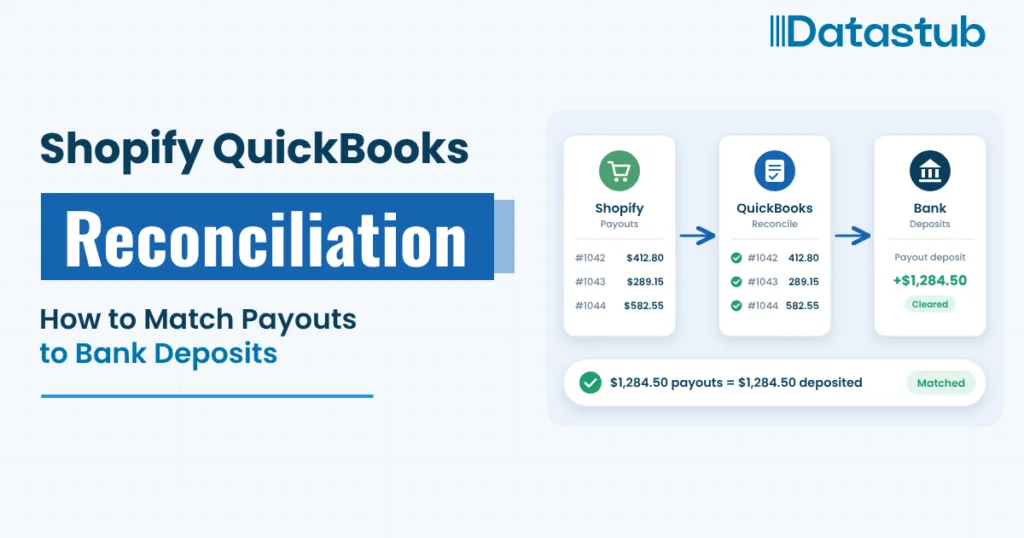
A Shopify store sells $10,000 in one week, and the bank deposit that follows is $9,305. Neither number is wrong. Shopify QuickBooks reconciliation is the job of explaining that $695 gap, one payout at a time.
Refunds, fees, and a customer dispute took the $695 before the money ever moved. Each one belongs in a different QuickBooks account. When they all land in one deposit, the detail disappears. You can’t see true sales, the sales tax you owe, or what the fees cost.
The fix is a short monthly routine. Match each payout to one deposit and one bank line, then trace any gap to its cause. One $10,000 week runs through every step, so you can watch each dollar move.
Why a Shopify Payout Never Equals Your Sales Total
Most e-commerce bookkeeping problems start with one blind spot. Shopify reports what customers paid. The bank shows what Shopify sent. The two numbers differ by design, because Shopify pays out the net.
Shopify builds each payout from payments, then subtracts refunds, disputes, and fees. Its own Payouts page defines the payout balance that way. Sales tax and shipping ride along inside the payments, so the deposit also holds money that belongs to the state.
QuickBooks sees one number in the bank feed. A payout built from dozens of orders still arrives as one deposit. Four things shrink that deposit:
- Refunds: money returned to customers, taken from a later payout.
- Fees: the processing fees Shopify charges on each sale.
- Disputes: a chargeback pulls the disputed amount, plus a dispute fee, from the next available payout.
- Reserves: a share of sales that Shopify holds back for a set period.
Each of the four needs its own home in QuickBooks. That is why Shopify QuickBooks reconciliation starts by building one payout line by line.
One Payout, Line by Line: From $10,000 in Sales to $9,305
The $10,000 week breaks into $9,000 of products, $400 of shipping, and $600 of sales tax collected for the state. This week has no reserve, so four deduction lines apply before Shopify sends the money. The table shows each line and where it belongs in QuickBooks.
| Line on the payout report | Amount | Where it belongs in QuickBooks |
|---|---|---|
| Charges collected (products, shipping, sales tax) | $10,000.00 | Sales for products and shipping ($9,400) and sales tax payable ($600) |
| Refunds | ($250.00) | Refunds, which reduce sales |
| Processing fees | ($310.00) | Merchant fees expense |
| Dispute amount | ($120.00) | Chargebacks, until the dispute settles |
| Dispute fee | ($15.00) | Merchant fees expense |
| Net payout | $9,305.00 | One bank deposit |
The four deductions add up to the $695 gap: $250 plus $310 plus $120 plus $15. Every dollar has a reason, and every reason has an account.
Look at the $600 again. It sits inside the deposit, but in most cases it is not income. It is sales tax you hold for the state until you file. If you win the dispute, Shopify returns the $120 in a later payout, and you move it back out of chargebacks.
The Shortcut That Hides Fees, Refunds, and Sales Tax
One shortcut shows up again and again in QuickBooks cleanup work: booking the $9,305 deposit as sales. It feels harmless. The deposit is real money, and the total lands within $155 of true net sales of $9,150.
That near miss is an accident. The $600 of sales tax adds to the deposit, while $445 of fees and chargebacks subtract from it. Those two errors nearly cancel, so nothing looks wrong.
| What the books show | Deposit booked as sales | Booked line by line |
|---|---|---|
| Sales | $9,305 | $9,150 (net of the $250 refund) |
| Sales tax payable | $0 | $600 |
| Merchant fees | $0 | $325 |
| Chargebacks | $0 | $120 |
| Refund visible | No | Yes, $250 |
The middle column hides three things: a $600 tax balance, $445 of costs, and a $250 refund. You cannot spot a rising refund rate or a fee increase. Worse, the sales tax return starts from a number the books never recorded.
Booking each line fixes all three and speeds up every Shopify QuickBooks reconciliation. You get true sales, a tax balance that is ready to file, and fee numbers you can act on.
Shopify QuickBooks Reconciliation in Six Steps at Month End
This routine assumes the connector already runs. If it doesn’t, start with our Shopify to QuickBooks setup guide. Then run these six steps once a month, or weekly if you sell at volume.
- Confirm every Shopify transaction first. Open the connector’s transaction area, which Intuit calls App transactions, and clear anything marked For review. Intuit’s connector guide says to confirm transactions there before you touch the bank feed.
- Export the payout detail for the month. In Shopify, go to Finance, then Payouts, and select View order transactions. Export the month, then list each payout’s date and net amount.
- Match each payout to one QuickBooks deposit. The connector records a payout as a deposit. Compare the date and net amount of each pair. They should agree to the penny.
- Match each deposit to one bank line. In the Banking page, accept the match between the QuickBooks deposit and the bank feed line. Never type a new deposit by hand. A manual entry on top of the connector’s deposit counts the same money twice.
- Check the holding account for leftovers. Shopify money passes through a holding account before it reaches the bank. Depending on your settings, that is Undeposited Funds or a Shopify clearing account. At month end, it should hold only payouts still on their way.
- Tie three totals, then reconcile the bank. Shopify payouts, QuickBooks deposits, and bank deposits for the month should match. Payouts in transit across the month line are the one exception. Then run the regular bank reconciliation against the statement.
In the $10,000 week, steps 2 through 4 show the same figure three times: $9,305.00 in Shopify, $9,305.00 in QuickBooks, and $9,305.00 at the bank. Three matching numbers close the week. When they don’t match, the next section finds the cause.
When the Numbers Don’t Match: Find the Gap by Its Size
Every gap in a Shopify QuickBooks reconciliation is a clue. Its size usually points straight at the cause. Put the Shopify payout report beside the QuickBooks deposit and check the table below.
| What you see | Likely cause | Where to look |
|---|---|---|
| The deposit is a steady percentage smaller than expected | A percentage reserve holds part of each payment | Reserved funds on the Shopify Payouts page, and the reserve email |
| The deposit is short by one order’s amount, plus a small fee | A chargeback pulled that order out of the payout | The chargebacks page in the Shopify admin |
| The deposit is short by an amount from an older order | A refund from an earlier week came out of this payout | Refund dates in the order transactions export |
| The deposit is larger than the period’s sales | A reserve released, or a won dispute came back | Positive reserve lines and dispute outcomes |
| The deposit is short by a steady share of sales | A financing repayment, such as Shopify Capital, comes out of each payout | The payout detail, for a repayment line |
| QuickBooks shows two deposits and the bank shows one | A hand-typed deposit sits on top of the connector’s deposit | The Banking page and the deposit list, for duplicates |
| The bank shows money QuickBooks doesn’t | A payout from another processor, such as PayPal or Klarna | The bank feed description and that processor’s own report |
Start with the biggest gap. One cause usually explains most of it. Then work through what is left the same way until the difference is zero. In the $10,000 week, the $695 split into four known lines, so nothing was left to chase.
Why Reserves, Disputes, and Refunds Hit Later Payouts
Money rarely moves in the same week as the order. A refund, a dispute, or a reserve can reach a payout days, weeks, or months after the sale. That timing is what makes month-end totals look off in any Shopify QuickBooks reconciliation.
| What happens | Which payout it hits | What to do in QuickBooks |
|---|---|---|
| A customer buys | The next payout after the sale | Book the sale when the order syncs |
| A refund is issued | The next payout after the refund | Record it against the original sale |
| A chargeback opens | The next available payout | Book it to chargebacks until the dispute closes |
| A dispute is won | A later payout | Move the amount back out of chargebacks |
| A reserve is placed | Each payout during the reserve, as a negative line | Move the held amount to a Shopify reserve account |
| A reserve ends | A later payout, as a positive line | Move the amount out of the reserve account |
A Reserve Is a Hold, Not a Cost
Shopify keeps part of your sales for a set period to cover disputes and refunds. Then it releases what it doesn’t need. Its reserve guide describes two kinds: a fixed amount, or a percentage of each transaction. Shopify’s own examples use 120 days, and the reserve email states your exact terms.
A 10% reserve on the $10,000 week would hold about $1,000 back. The deposit would shrink to about $8,305. The money is still yours, so book it to a reserve account on the balance sheet, not to an expense.
Payouts in Transit Are Not Errors at Month End
Shopify can create a payout on the last day of the month and send it a few business days later. QuickBooks dates the deposit in the first month. The bank dates it in the second. List it as a deposit in transit, and it clears itself the next month.
Selling Through More Than Shopify Payments? Reconcile Each Source Alone
The same Shopify QuickBooks reconciliation bridge works for every sales channel, and our Amazon FBA bookkeeping guide applies it to Amazon settlements. Each payment source pays out on its own schedule, so each one needs its own match.
An order paid through PayPal or Klarna shows up in Shopify sales. Its money never travels in a Shopify payout. It arrives from that processor, on that processor’s calendar.
Give each source its own holding account in QuickBooks. Reconcile it against its own payout report and its own bank line. When sources mix in one account, a gap is hard to place. When they stay apart, the gap names its own source.
What a Clean Shopify QuickBooks Reconciliation Looks Like
A finished month passes every check on this list:
- Every Shopify payout has one QuickBooks deposit and one bank line.
- Shopify, QuickBooks, and the bank show the same monthly payout total.
- The holding account carries only payouts that are still on their way.
- Fees, refunds, and chargebacks each sit in their own account, with no hand-typed deposits.
- The sales tax payable balance matches the tax collected, less the returns you have filed.
- The reserve balance matches the Reserved funds figure on the Shopify Payouts page.
If one line fails, the gap table above shows where to look. If all six pass, your Shopify QuickBooks reconciliation is done, and the books are ready for your tax preparer, your lender, and your own decisions.
Make Payout Matching a Routine Your Books Can Rely On
Datastub handles Shopify QuickBooks reconciliation for e-commerce sellers every month. Reach out for a free payout review. Send one month of Shopify payout reports and your QuickBooks file, and we will tell you straight what ties and what needs fixing.
Crunch. Strategize. Deliver.
This article is general information, not tax, legal, or financial advice. Software screens, fees, and reserve terms change, so confirm current details with Shopify and Intuit. Talk with a qualified professional about your own situation. Product details verified October 2026.