

Setting up ADP RUN payroll takes three stages. First you set up the company, then you add each employee, and then you run and check your first payroll. Most of it is plain data entry. The fields that keep payroll clean all year are the few that most owners click past.
This guide follows each stage of ADP RUN payroll setup in the order the software asks for it, with screenshots from a live account. It also covers the step most setup guides skip: reading the reports after payday and tying them to your books.
ADP’s official name for the product is RUN Powered by ADP. Most people search for it as ADP RUN, and that is the name we use here.
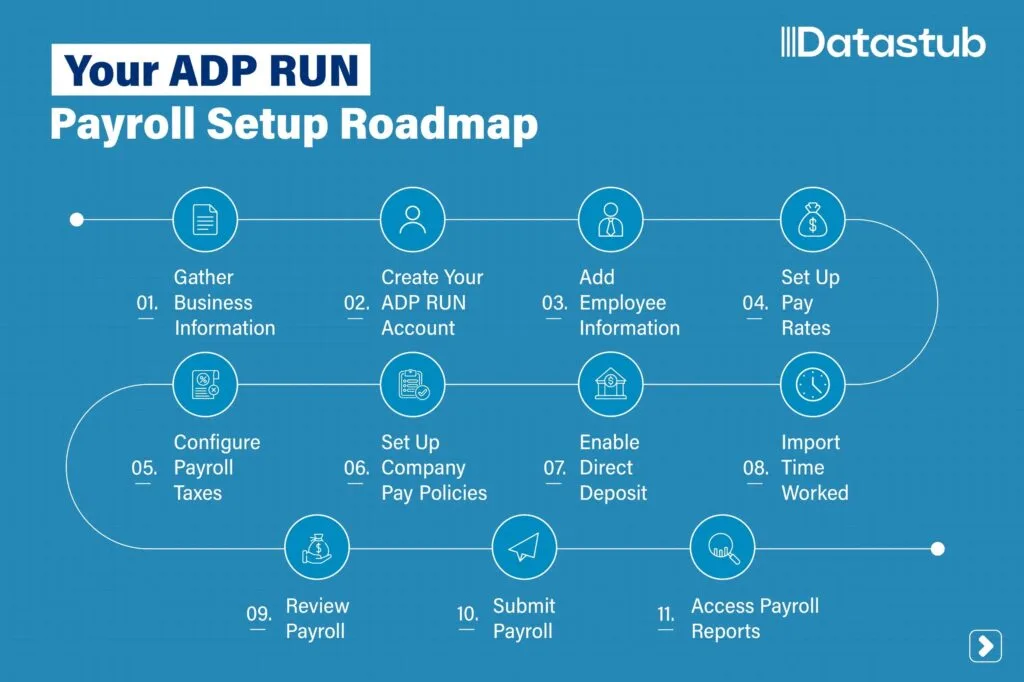
What You Need Before You Start ADP RUN Payroll Setup
Most setup delays come from hunting for a number halfway through a screen. Several items below also tie into how payroll taxes work for your business, which is why ADP asks for them up front. Start with your Employer Identification Number (EIN), then gather the rest.
| What to have ready | Where to find it | Why it matters |
|---|---|---|
| Legal business name and EIN | Your IRS EIN letter or a filed Form 941 | ADP files your returns under these exact details |
| Business checking account and routing number | A company check or your bank portal | ADP pulls pay and taxes from this account |
| Pay frequency, first check date, and pay period dates | Your current payroll records | Sets the calendar for every employee |
| Federal tax deposit schedule | IRS notices or past Form 941 filings | Tells ADP when to send withheld tax |
| State withholding and unemployment account numbers | Letters from each state tax and workforce agency | Each state where people work needs its own |
| State unemployment tax rate | Your yearly rate notice from the state | A wrong rate carries into every payroll |
| Workers’ comp class codes | Your policy declarations page | Needed for workers’ comp reporting |
| Payroll totals already paid this year | Your old provider’s payroll summaries | Keeps tax limits and W-2s correct |
| Each employee’s Form W-4 and state withholding form | Collected at hire | Drives every withholding field |
| Your chart of accounts | Your accounting software | Lets each payroll post to the right accounts |
Form I-9 works differently. It confirms that each new hire can legally work in the U.S. You complete it and keep it on file. It is not a tax form, and no agency receives it unless one asks to inspect it.
Stage One: Company Settings Every Paycheck Depends On
Company settings sit behind every employee record, and ADP RUN files taxes using exactly what you enter here. If people work for you in more than one state, each state needs its own accounts. Our multi-state payroll compliance checklist covers that part in full.
Step 1: Match Your Legal Name and EIN to IRS Records
ADP files your returns under the name and EIN you enter. Copy both from your EIN letter or a filed Form 941, character for character. A missing “LLC” or a trade name in place of the legal name can trigger IRS notices later.
Step 2: Enter Every State Account and Your Unemployment Rate
Each state where employees live or work needs a withholding account and an unemployment account. The state sets your unemployment tax rate, not ADP, and it can change every year. New employers usually start on a default rate until the state has some history to work from.
Enter the rate from your latest notice. Then check it again each January, when the new notice arrives.
Step 3: Set the Pay Schedule Before You Add Anyone
The pay schedule is a company setting. Each new employee record then uses that schedule, and you cannot change it there, as the Stage Two screenshots show. Pick weekly, biweekly, semimonthly, or monthly. Then set the first check date and pay period.
Check your state’s rules first. Many states set a minimum pay frequency, and ADP reminds you of this on the setup screen.
Step 4: Load Prior Payroll Totals If You Paid Anyone This Year
Switching to ADP RUN payroll partway through the year? Enter the wages, taxes, and deductions you already paid, broken out by quarter. ADP uses these totals to stop taxes that end at a yearly limit, such as Social Security tax after $184,500 of wages in 2026. They also make your W-2s correct.
Timing matters here. ADP’s own setup guide says the prior payroll wizard is no longer available once you process your first payroll. After you finish it, changes go through your ADP service team. Pull the totals from your old provider’s reports before you start.
Step 5: Map Payroll to Your Chart of Accounts Now
Depending on your plan, ADP RUN can send each payroll to your accounting software as a journal entry. Set up that mapping during company setup, using your real chart of accounts. Give wages, employer taxes, contractor pay, and each deduction their own account. One lump “payroll” line hides the numbers you will want later.
Stage Two: Adding Employees in ADP RUN, Screen by Screen
Every person on your ADP RUN payroll goes through the same set of screens, in the order below. Contractors follow a shorter path. Whether someone is a contractor or an employee is a legal question, not a software one. Our guide to W-2 vs 1099 worker classification explains how to decide.
Step 6: Invite the New Hire or Enter the Details Yourself
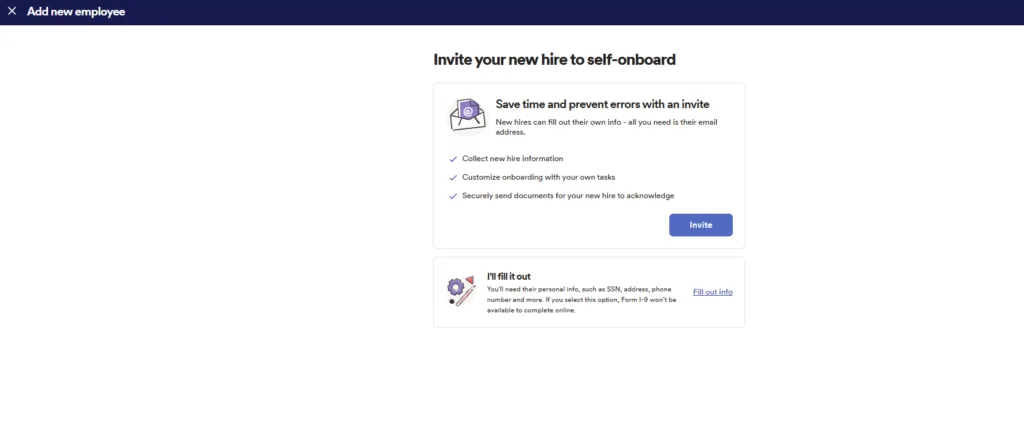
ADP RUN offers two ways to add a new hire: an email invite or manual entry.
ADP RUN opens with two choices. Invite sends the new hire an email to enter their own details, tax forms, and documents. I’ll fill it out lets you enter everything yourself.
One detail on this screen decides it. If you fill it out yourself, Form I-9 will not be available to complete online. Use the invite for most hires. Enter details yourself only when a hire has no personal email, or when you are moving a whole team over from another provider.
Either way, you also report each new hire to your state. Federal new hire reporting rules set a 20-day limit, and some states set a shorter one. ADP RUN files it for you on Enhanced plans and above. On the entry-level Essential plan, you file it yourself.
Step 7: Enter the Legal Name Exactly as Social Security Shows It
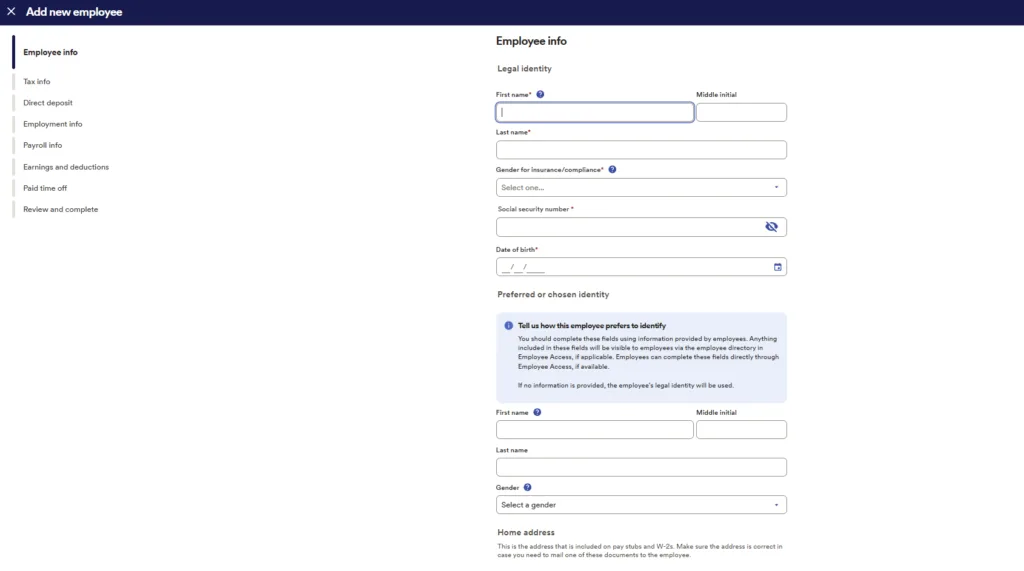
The Employee info screen separates legal identity from the name a person prefers to use.
The Employee info screen asks for legal name, Social Security number, date of birth, and home address. Take the name from the Social Security card, not from a job application. A mismatch here can lead to a name mismatch notice on the W-2. The screen has a separate section for a preferred name, and that is where a nickname belongs.
The home address matters more than it looks. It prints on pay stubs and W-2s, and it tells ADP which state and local taxes apply.
Step 8: Copy the W-4 and State Form Field by Field
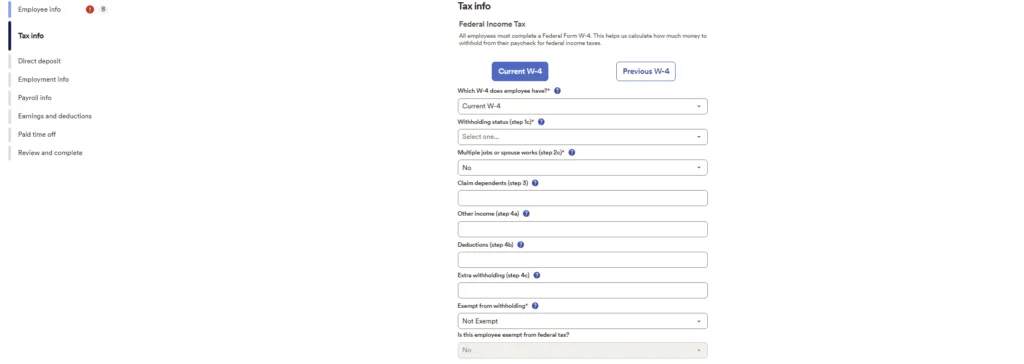
Each field on the Tax info screen matches a numbered step on Form W-4.
The Tax info screen mirrors Form W-4 step by step. It covers filing status (Step 1c), multiple jobs (Step 2c), dependents (Step 3), and other adjustments (Steps 4a to 4c). Enter what the employee wrote, and nothing more. Choose Previous W-4 only for employees whose form dates from before 2020, when the form still used allowances.
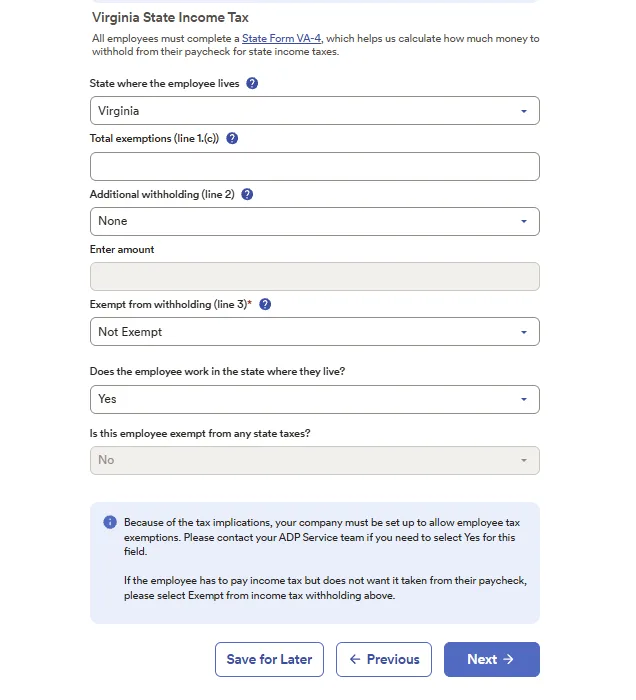
The state section changes by state. This account uses Virginia’s Form VA-4.
Below the federal form sits the state form. The account shown uses Virginia’s Form VA-4, so the screen asks for total exemptions and any extra withholding. Your state’s form will look different, and a handful of states have no wage income tax at all.
One question on this screen drives multi-state payroll: “Does the employee work in the state where they live?” A “No” means two states may tax this person. Answer it from where the person actually works, not from the office address. For the employer rules behind all of these fields, see IRS Publication 15.
Step 9: Add Direct Deposit and Let ADP Verify the Account
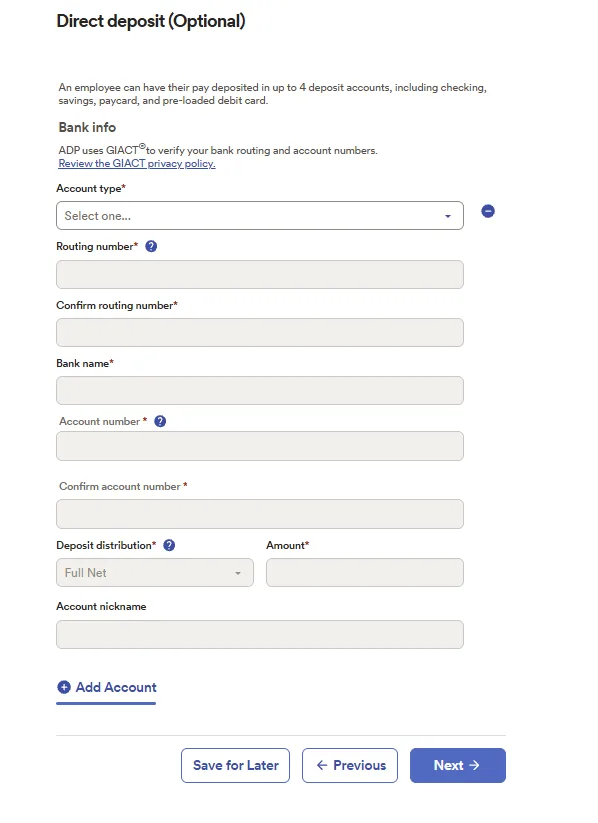
Up to four deposit accounts per employee, each verified before use.
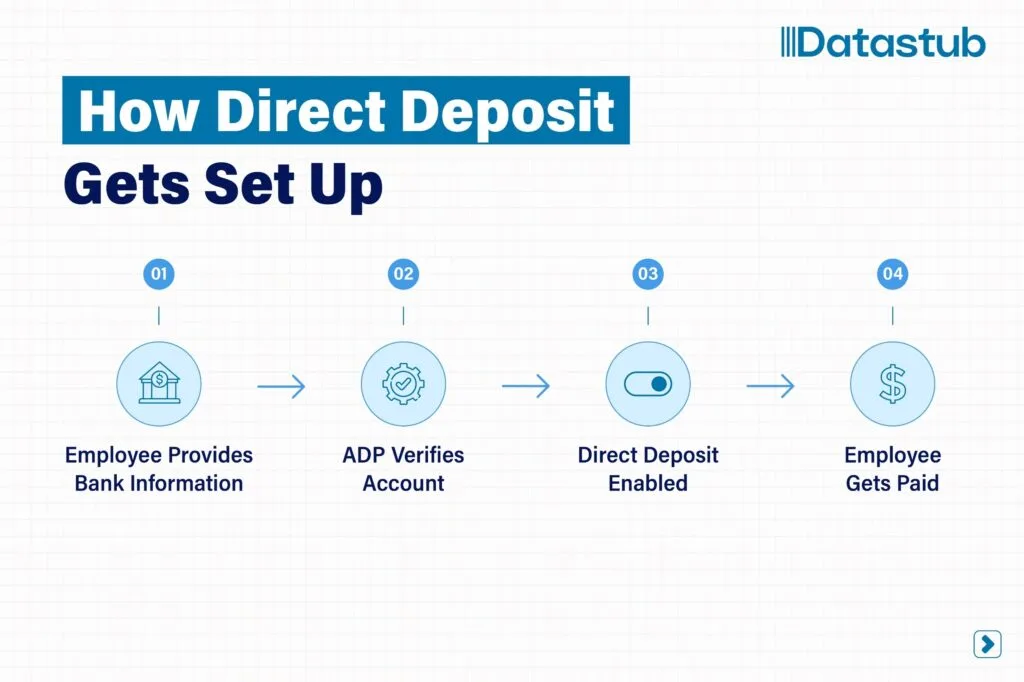
Direct deposit is optional in ADP RUN. Each employee can split pay across up to four accounts, including checking, savings, and paycards. ADP checks each routing and account number through a verification service called GIACT.
Set the split with care. One account takes Full Net, which is whatever is left over. Any extra account takes a set amount. No account ready yet? Pay by check for the first run, if your plan includes checks. Then add deposit details before the next one.
Step 10: Set Pay Type, Pay Rate, and Standard Hours
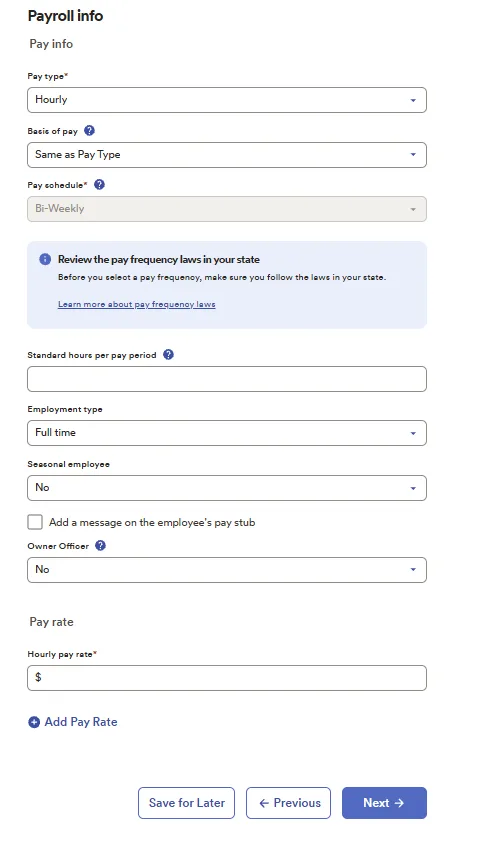
The pay schedule is grayed out here because you set it at the company level.
The Payroll info screen sets how you pay the person. Choose hourly or salary, then enter the rate. Use Add Pay Rate when one person earns different rates for different work, such as shop time and field time.
Standard hours per pay period deserve a second look. ADP fills the payroll worksheet with these hours by default, and each pay run starts from them. For a salaried employee, that saves time. For an hourly employee whose hours change, a standard figure will pay hours nobody worked unless you overwrite it.
Mark the Owner Officer field correctly for owners and corporate officers. Some states treat their wages differently for unemployment tax.
Step 11: Assign Paid Time Off, Then Review and Save
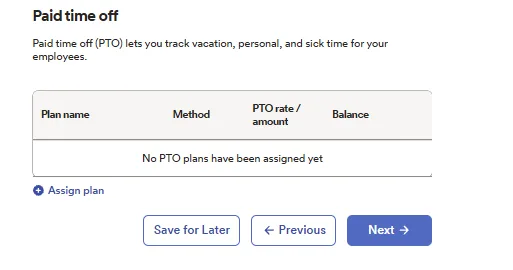
You assign paid time off plans to each employee on this screen.
You build paid time off (PTO) plans for the company, then assign them to each person here. If the screen reads “No PTO plans have been assigned yet,” the employee earns nothing until you assign one. Several states and cities require paid sick leave, so check your local rule before you leave this blank.
The last screen, Review and complete, shows every entry in one place. Read it against the employee’s W-4 once more before you save.
Stage Three: Running and Checking Your First ADP RUN Payroll
Each ADP RUN payroll follows the same three screens: Enter payroll, Preview payroll, and Payroll summary. Many owners run this themselves, while others hand it to a payroll outsourcing team once setup is stable. Either way, the checks below stay the same.
Step 12: Start From the Dashboard and Work to the Due Date
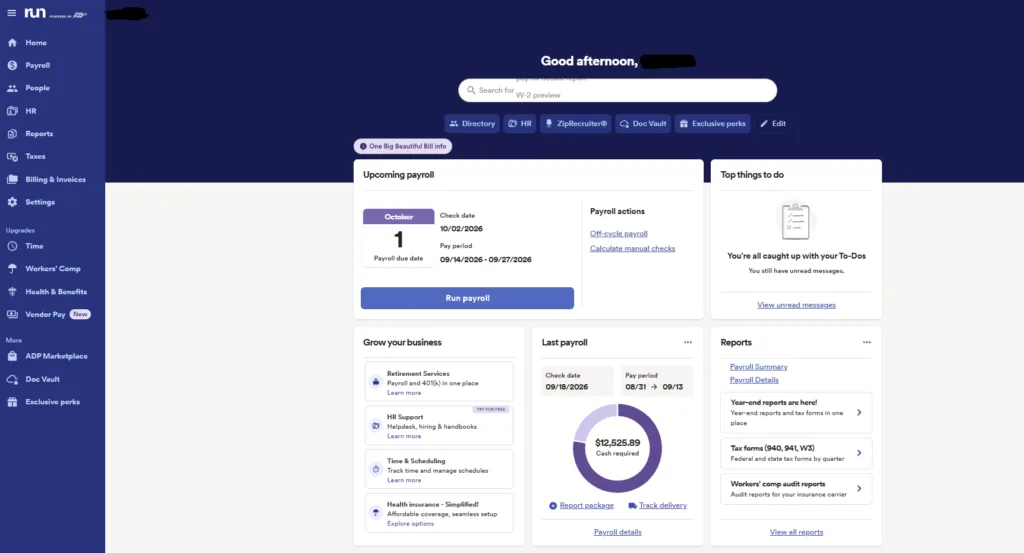
The Home dashboard shows the payroll due date next to the check date.
The ADP RUN Home dashboard shows the next payroll’s due date, check date, and pay period, with a Run payroll button beside them. Treat the due date as your deadline, not payday. In the account shown, payroll is due October 1 for an October 2 check date. Your lead time depends on your plan and payment method, so confirm it in your own account.
Step 13: Enter Hours, Salary, and Extra Pay in the Worksheet
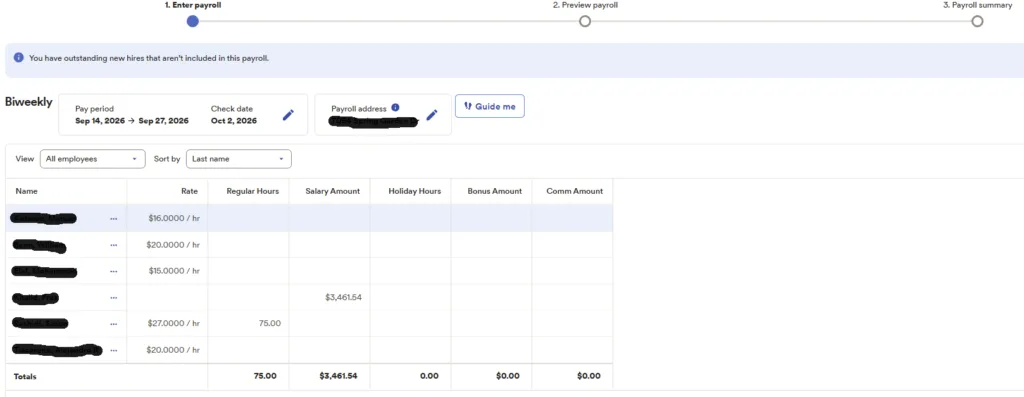
The payroll worksheet, with a banner flagging new hires left out of this run.
The worksheet lists each employee with columns for regular hours, salary, holiday hours, bonus, and commission. Salary fills in on its own. Hourly rows fill only if you set standard hours in Step 10.
Watch the blue banner at the top. Here it reads “You have outstanding new hires that aren’t included in this payroll.” It means someone’s setup is unfinished. ADP will not pay that person until you finish it.
Then enter overtime as overtime. For hourly employees, federal law counts overtime by the workweek, not the pay period. A biweekly row showing 75 regular hours can still hide overtime if one week ran 45 hours. In 2026 this matters twice, because employers now report qualified overtime on the W-2 in Box 12 with code TT. That figure covers only the extra half in time-and-a-half. Overtime typed in as regular hours never reaches it.
Step 14: Read the “Does This Look Right?” Warnings First
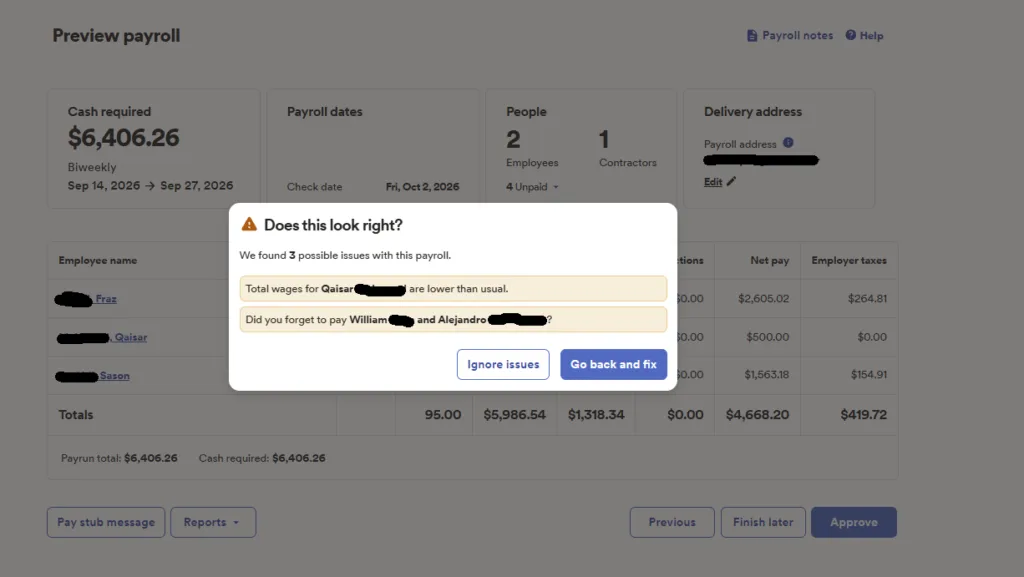
ADP compares each run to past payrolls and flags anything unusual.
After you enter pay, ADP compares the run to past payrolls. In this example, it found three possible issues. One person’s wages were lower than usual, and two regular employees were missing entirely.
The fast option is Ignore issues. Hold off until you can explain each warning. A lower amount can be correct, such as a short week. A missing person usually is not.
Step 15: Check Cash Required and People Counts, Then Approve
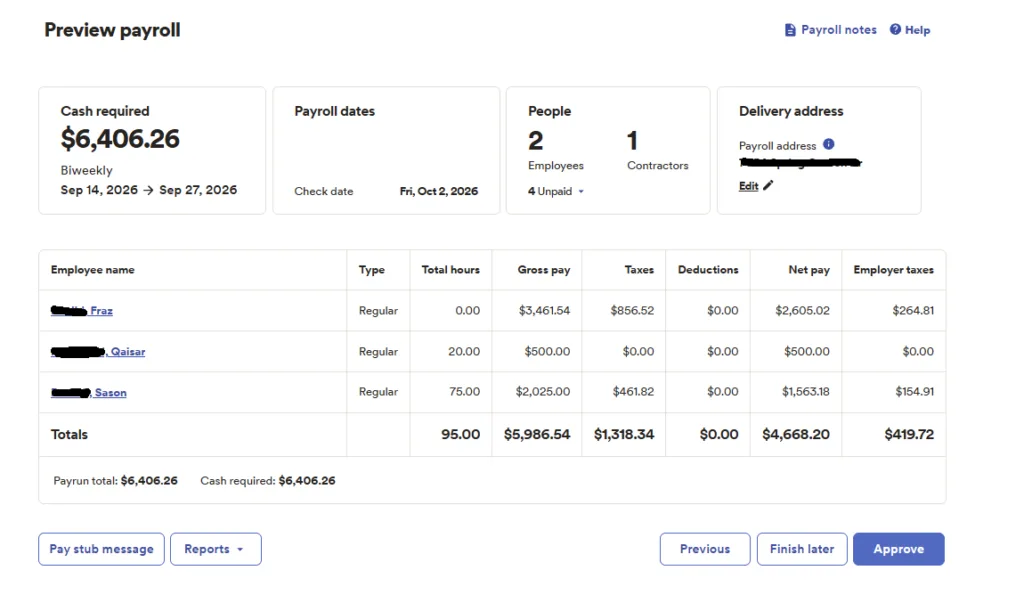
Cash required, the people count, and each person’s totals, all on one screen.
Preview payroll shows the full run: hours, gross pay, taxes, net pay, and employer taxes for each person. Two figures at the top deserve a pause.
Cash required is what ADP will pull from your account. Here it is $6,406.26, made up of $5,986.54 of gross pay plus $419.72 of employer taxes. People shows 2 employees, 1 contractor, and 4 unpaid. That unpaid count should match the people you meant to skip.
Approve is final. After it, fixing a mistake usually means a correction or an extra off-cycle run, which makes this the moment to slow down.
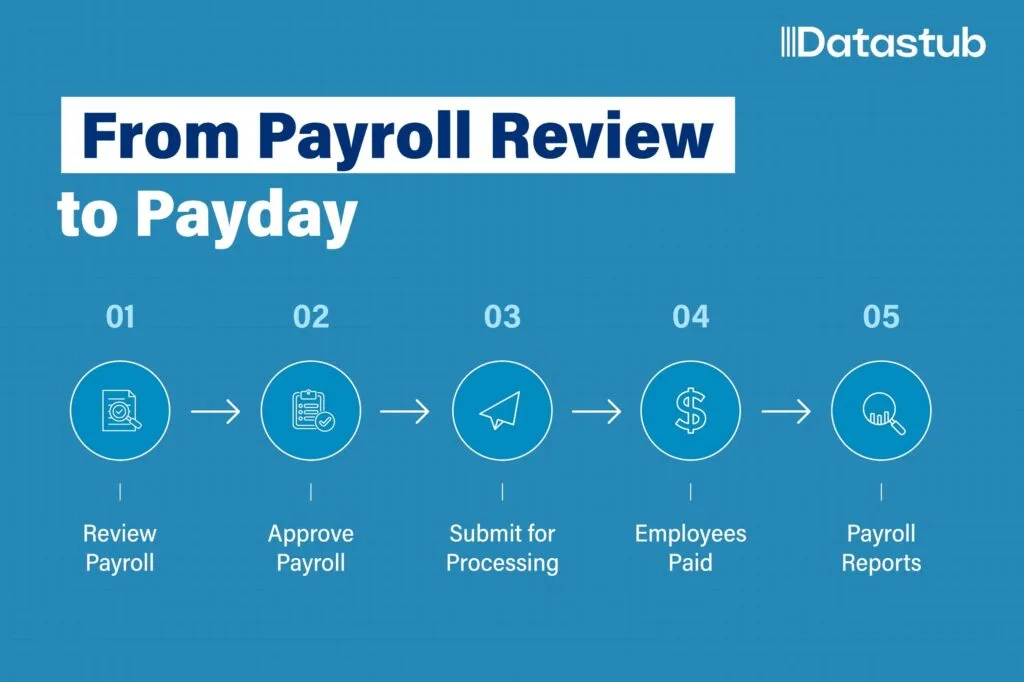
After Payday: Tying ADP RUN Reports to Your Books
An ADP RUN payroll is not done when the money moves. It is done when the numbers land correctly in your books, the same check our outsourced bookkeeping team runs every month. You need at least one completed payroll before most reports show anything.
Which ADP RUN Reports Your Bookkeeper Actually Needs
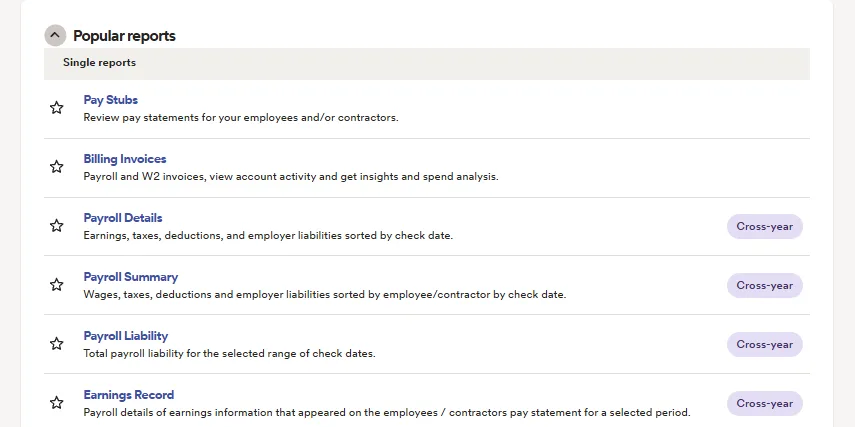
The Popular reports list in ADP RUN.
| Report | What it shows | Use it for |
|---|---|---|
| Payroll Details | Earnings, taxes, deductions, and employer costs by check date | Building or checking the payroll journal entry |
| Payroll Summary | The same totals, listed by person | Matching each run to the bank withdrawal |
| Payroll Liability | What is owed across a range of check dates | Confirming tax and deduction balances |
| Earnings Record | What appeared on each pay statement | Answering employee pay questions |
| Pay Stubs | Each pay statement | Employee copies and record requests |
| Billing Invoices | ADP’s own charges | Recording ADP fees as an expense |
Why Cash Required and Total Expense Never Match
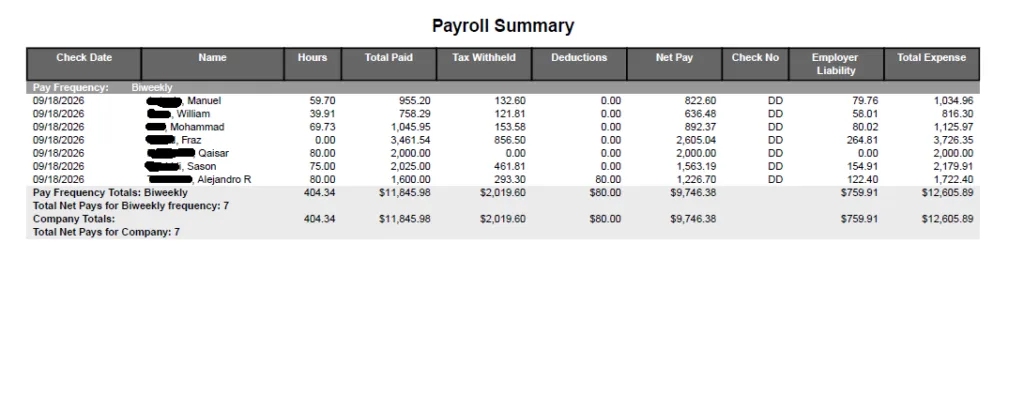
A Payroll Summary for one biweekly run of seven people.
Take the Payroll Summary above, from one biweekly run for seven people. Here are its totals next to the dashboard figure for the same run.
| Line | Amount |
|---|---|
| Total paid (gross pay) | $11,845.98 |
| Tax withheld from pay | $2,019.60 |
| Deductions | $80.00 |
| Net pay | $9,746.38 |
| Employer taxes | $759.91 |
| Total expense | $12,605.89 |
| Cash required (dashboard) | $12,525.89 |
Two totals, $80 apart. Total expense is what the payroll cost the business: gross pay plus employer taxes. Cash required is what ADP pulled from the bank: net pay, plus withheld tax, plus employer taxes.
The gap is the $80 deduction, a Roth retirement contribution. ADP withheld it from an employee’s check but did not send it anywhere. The business remits it separately to the retirement plan provider, so until that happens, it sits on your books as money you owe.
One more trap sits in the same report. Of the $11,845.98 in total paid, $2,000 went to a contractor. That $2,000 is contract labor, reported on Form 1099-NEC, not W-2 wages. Book it to its own account.
Put together, here is the entry Datastub posts for this run. Debits sit on the left, credits on the right.
| Account | Debit | Credit |
|---|---|---|
| Officer’s Compensation | $3,461.54 | |
| Salaries and Wages | $6,384.44 | |
| Subcontractors (1099s) | $2,000.00 | |
| Payroll Tax Expense | $758.95 | |
| Employee Benefits (SUI) | $0.96 | |
| Roth Retirement Payable | $80.00 | |
| Bank (net pay) | $9,746.38 | |
| Bank (taxes withheld and remitted) | $2,779.51 | |
| Total | $12,605.89 | $12,605.89 |
Reading the Entry: Three Splits Worth Knowing
Wages split two ways because one person here is an owner. Fraz was marked Owner Officer back in Step 10, so the books separate officer’s compensation from regular wages, the way the IRS expects on a corporate return. Everything else on the wage side goes to Salaries and Wages.
State unemployment tax gets its own line too, carved out of the $759.91 employer tax total, since it is a state-specific cost worth tracking on its own.
The bank withdrawal itself splits into two credits. One is $9,746.38, the net pay that reaches employees directly. The other is $2,779.51, the withheld tax plus employer taxes that ADP remits on the business’s behalf.
If your bookkeeper posts one lump sum for all of this, ask for this level of detail instead. It is the difference between a payroll number and a payroll number that actually tells you something.
What Owners Assume About ADP RUN, and What Is True
These come up in almost every new ADP RUN payroll account we review. Most apply to other platforms too, and our Gusto payroll setup guide covers the same ground for that system.
| What most owners assume | What is actually true |
|---|---|
| ADP files my taxes, so setup is ADP’s job. | ADP files and pays using what you enter. A wrong rate or account number carries into every return until someone fixes it. |
| Every ADP RUN plan does the same things. | Features vary by plan. Filing in more than one state, state unemployment tax management, paper checks, and new-hire reporting are Enhanced-tier features and above. The entry-level Essential plan does not include them. Check your plan before you hire in a new state. |
| Cash required is what payroll costs me. | Cash and cost differ by any deductions you pay out yourself. The Payroll Summary shows both. |
| Regular hours are close enough for hourly staff. | Overtime is counted by the workweek, and 2026 W-2s report it on its own line. Enter it as overtime every time. |
Seven Setup Habits That Keep ADP RUN Payroll Clean
- Copy the legal name and EIN from IRS paperwork, not from memory.
- Enter every state account and the current unemployment rate, then recheck the rate each January.
- Load prior payroll totals before the first run if you paid anyone this year.
- Use the new-hire invite, so the W-4 and I-9 come straight from the employee.
- Enter overtime by workweek, never folded into regular hours.
- Read every “Does this look right?” warning before you click Approve.
- Match the Payroll Summary to your books after each run, with wages, contractor pay, employer taxes, and deductions split out.
Setting up ADP RUN payroll for the first time, or not sure your current setup holds up against this list? Reach out to Datastub for a free payroll setup review, and we’ll tell you straight what is working and what needs fixing.
Screens shown reflect RUN Powered by ADP as of September 2026. Labels and features can differ by plan and change as ADP updates the product. This article is for general information only and is not tax, legal, or accounting advice. Consult a qualified professional about your specific situation.